

What is NSFS
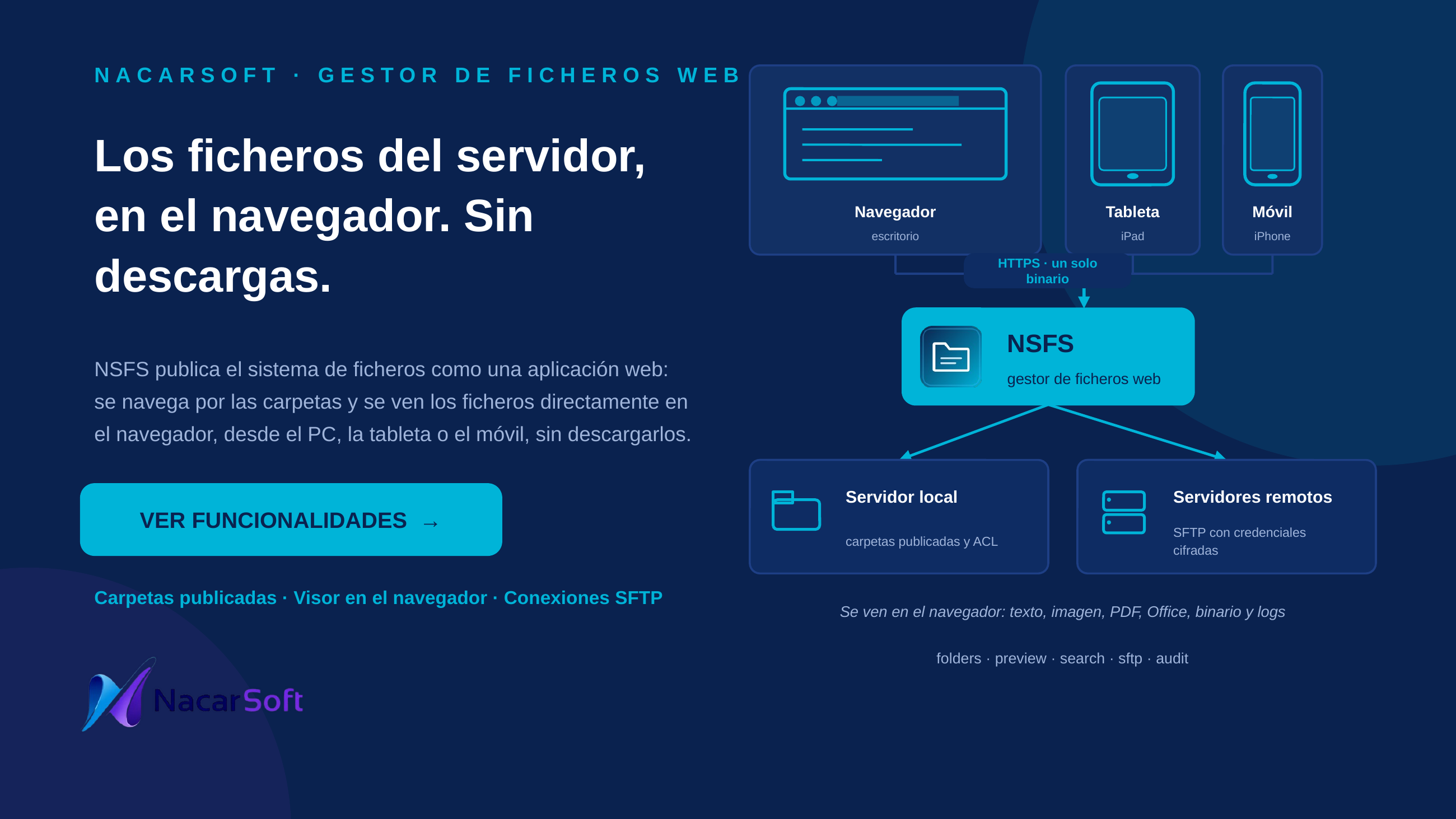
nsfs (NSFS) is a single-binary self-hosted file manager: browse the local filesystem and remote SSH servers from the browser, with JWT login, groups→roles→permissions RBAC (scoped per connection and path prefix), an audit log, and nslib licensing with a 30-day trial.
- Local + remote: the sidebar shows the
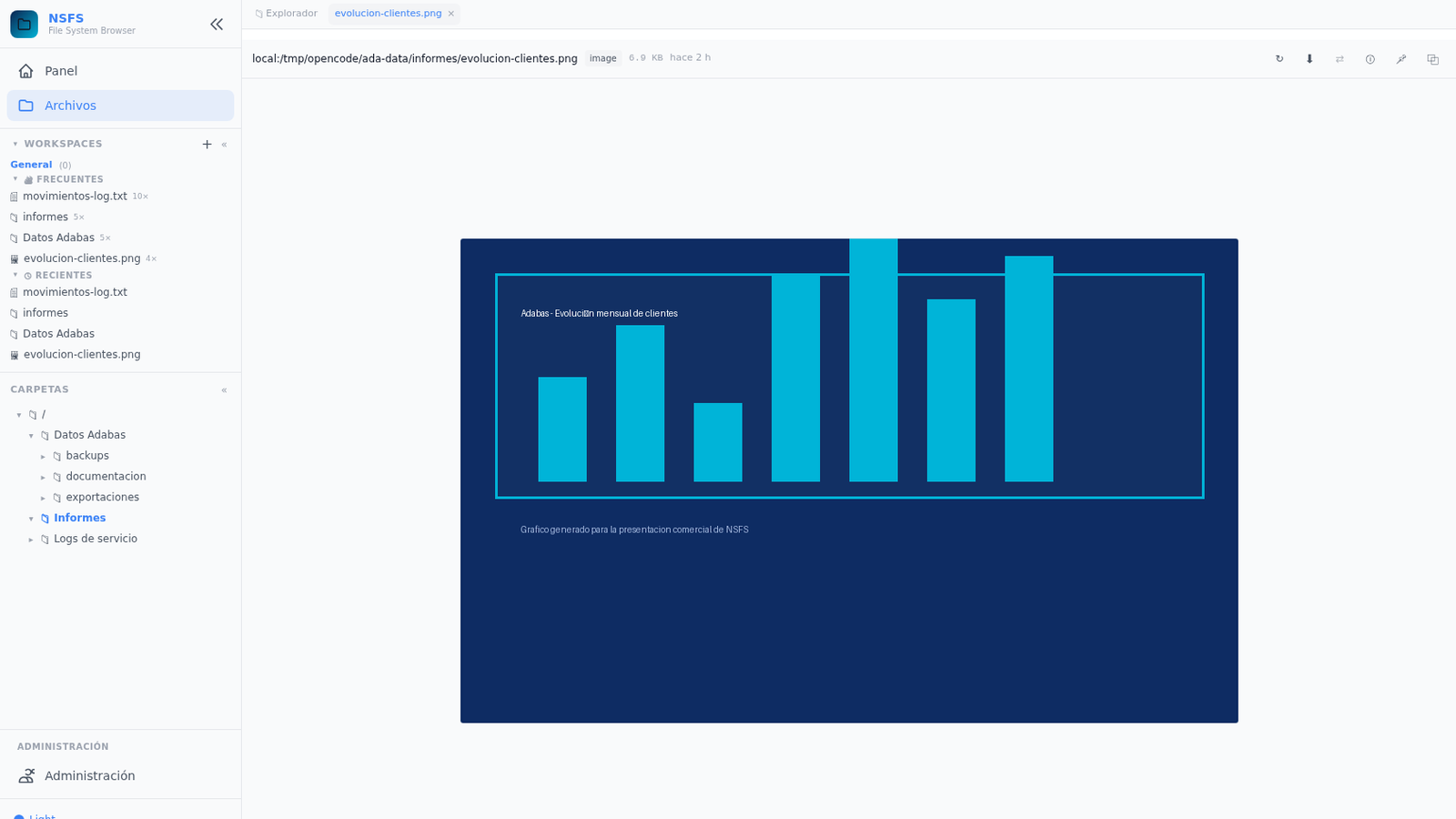
Localroot plus each SSH connection as an extra root; navigation works the same on both. - Seen without downloading: text and code with Monaco, images, PDF, Word/Excel/PowerPoint, hexadecimal and a live log tail, all served to the browser viewer.
- Search inside: an indexer extracts the content of the files (txt, log, CSV, JSON, XML, code and Office) and the search finds inside, not only by name.
- No frontend build: Alpine.js + Tailwind via CDN, 6 languages (EN is the source of truth, ES fully translated, FR/DE/IT/PT fall back to EN).
- SSH credentials encrypted at rest with AES-256-GCM (
security.aes_key). - HTTPS only: the users need no FTP, no SSH and nothing to install.
Host names, paths, and users in the examples are fictional.
Use cases
1. Browse and operate on the allowed local directory
List /data, create folders, upload/download, rename, and delete.
nsfs init ./mydata
nsfs start --config ./mydata
nsfs status
Web flow: login → Local connection in the sidebar → navigate with breadcrumbs → list/grid view → new folder, upload (drag & drop), download, rename, delete, context menu.
2. Add a remote server over SSH and browse it
Register the prod-example host and test the connection before using it.
Web flow: Administration → connections → create (host, port 22, user, password or key auth with optional passphrase, root_path) → test-connection button → it appears as a sidebar root (green dot = connected, grey = idle, red = error) → browse just like local.
3. Give a team read-only access to one remote path
The operators group may only list /var/log on host prod-example.
Web flow: Administration → access rules → create a rule (connection_id + path_prefix + list|read actions) for the group → verify with the per-user effective view → the user sees a filtered listing and gets 403 when trying to create folders outside their jail.
4. Bulk upload, search, and download as zip with auditing
Upload a batch, find a file by name, and download the selection as an archive.
Web flow: multi-select files → bulk actions (bulk delete/move) → download as zip → search by name (case-insensitive, paginated with ?page=&limit=) → every operation is recorded in audit/YYYY-MM-DD.jsonl and the recent-audit view.
5. Publish a folder as a group’s own environment (shares)
The accounting group sees \\srv\accounting as its own root with an editor role, without seeing the rest of the server.
Web flow: Administration → shares → create a share (name, connection, root_path, order) → assign group × role → the share appears as a root in the user’s sidebar. The group role only applies inside the share (deny-wins); outside their shares users see nothing. API: GET /api/shares/mine.
6. Seeing the files without downloading them
A user opens a report, a log or an image and sees it in the page, without the file passing through their disk.
Web flow: in the explorer, click the file → it opens in a tab with the viewer it deserves: Monaco for text and code, image viewer, full PDF, Word/Excel/PowerPoint reading, hexadecimal for binaries and a live tail for logs (/api/fs/log/tail). The read permission is enough: downloading is a separate option.
7. Searching inside the files, not only by name
The indexer extracts the content of the files (txt, log, csv, json, xml, code and Office) and the search finds inside.
# Indexer status and reindex
curl -H "Authorization: Bearer $TOKEN" http://localhost:11000/api/admin/index/status
curl -H "Authorization: Bearer $TOKEN" -X POST http://localhost:11000/api/admin/index/resync

# Content search (streaming)
curl -H "Authorization: Bearer $TOKEN" \
  "http://localhost:11000/api/fs/search?connection=local&path=/data&q=closing+run"
Web flow: the search bar takes a name and content, with filters by type and date; Administration → Index shows the status and allows reindexing, rebuilding or pausing.
8. Unifying the files of two servers
Copying between the local folder and an SFTP connection, without anyone mounting anything.
Web flow: select the files → copy → the copy runs in the background with progress and a cancel option (/api/fs/copy-start, /api/fs/copy-progress, /api/fs/copy-cancel). Everything is recorded in the audit log.
Interface

Reference
CLI commands
| Command | Description |
|---|---|
nsfs init [dir] [--admin-password PASS] | Creates the environment: config.yaml + SQLite DB + folders. Without --admin-password a random 6-char password is generated |
nsfs start [dir] / --config dir | Starts the server in the background (daemon) |
nsfs stop [--config dir] | Stops the daemon |
nsfs status | PID, uptime, memory |
nsfs run [--config dir] | Foreground (internal, not listed in --help) |
nsfs --version | Version and build |
Main configuration (config.yaml)
| Key | Description |
|---|---|
server.host / server.port | Listen address (default 0.0.0.0:11000) |
server.tls_cert_file / tls_key_file | Optional TLS |
database.path | SQLite path (./db/security.db) |
security.jwt_secret | JWT secret (min. 32 chars) |
security.token_expiry_hours | Token lifetime (24) |
security.aes_key | SSH credential encryption key |
security.password_reset_code_ttl_minutes | Reset-code lifetime (10) |
fs.max_upload_mb | Max upload size (500) |
fs.hidden_patterns | Hidden patterns |
fs.audit_dir | Audit directory (./audit) |
smtp.* | Optional SMTP for reset emails |
pagination.page_size | Page size (100) |
indexer.* | Content index: reindex intervals, indexed types, Office, watched paths |
The published folders are no longer seeded in
config.yaml: they are registered in Administration → Folders and stored in thesharestable. Each published folder defines the path jail.
Web UI areas
File browser (breadcrumbs, side tree, list/grid, search by name and by content, filters by type and date, multi-select, context menu, drag & drop, tabs of open files) · in-browser viewers (text/code with Monaco, image, PDF, Word/Excel/PowerPoint, hexadecimal binary viewer with patch editing, live log tail) and inline editor with save · SSH/SFTP connections · shares (group-managed directories) · workspaces, bookmarks, saved searches and recents · administration (users, groups, roles, access rules, per-user effective view, my-permissions, indexer status, configuration) · live event feed · recent audit · about · themes and language switcher.
Preview limits
| Kind | Limit | Notes |
|---|---|---|
| Multimedia (PDF, image, video, audio) | Streamed inline up to 200 MB | Only the read permission is needed: the file is not downloaded |
| Text and code | 1 MB | Served as text/plain for the editor |
| Binary | Paged by chunks | Hexadecimal viewer without a practical size limit |
| Log | Last 64 KB, chunks of 128 KB | Live tail, reports rotation |
Commented examples
# 1. New environment and start
nsfs init ./mydata
nsfs start --config ./mydata
nsfs status

# 2. Pin the admin password at init (for scripting)
nsfs init /opt/nsfs-prod --admin-password "strong-secret"

# 3. Show version
nsfs --version

# 4. Stop the daemon
nsfs stop --config ./mydata
# Paginated listing via API (with JWT token)
curl -H "Authorization: Bearer $TOKEN" \
"http://localhost:11000/api/fs/list?connection=local&path=/data&page=1&limit=100"
# Search by name
curl -H "Authorization: Bearer $TOKEN" \
"http://localhost:11000/api/fs/search?connection=local&path=/data&q=report"
# Visible shares of the user
curl -H "Authorization: Bearer $TOKEN" \
"http://localhost:11000/api/shares/mine"FAQ
Where is the admin password set? At init: without --admin-password a random one is generated (shown once); pin it with --admin-password for automation.
Why do I get 403 creating a folder? The listing is filtered by your permissions (list|read), and writing requires a rule on that connection_id + path_prefix. Check the user’s effective view.
Are SSH passwords stored in clear text? No: they are encrypted with AES-256-GCM using security.aes_key and never logged.
How do I publish a folder as a group’s own environment? With a share: Administration → shares → create (connection + root_path) → assign group × role. Users see it as a root in their sidebar.
Which languages are supported? EN (source), ES (complete), FR/DE/IT/PT (fall back to EN for any missing key).
Do the users need FTP or SSH? No. HTTPS only: they come in with their web session, and the access to each folder is defined by the group they belong to.
Is seeing a file the same as downloading it? No. The content is served to the browser viewer; the file never passes through the user disk. Downloading (/api/fs/download) is a separate, optional operation.
What is the difference between searching and searching by name? The search bar takes a name and looks inside the file. For that, the indexer extracts the content of text, log, CSV, JSON, XML, code and Office files, and reindexes it every 5 minutes locally and every 30 minutes on the SFTP connections.
Can I see an Excel or a Word file without having Office? Yes: they are read in the browser, just like a PDF. Same for binary files, shown in hexadecimal and patchable.
How is it decided which rule wins when there are several? The denial (deny) wins, and on a tie the longest path prefix wins. The Effective tab shows the result per user and per connection.
Are the published folders configured in config.yaml? No: they are registered in Administration → Folders and stored in the database (shares). The config.yaml only holds the server, security and indexer settings.
Do I have to mount the remote server? No: the SFTP connection is opened by NSFS itself, with a pool and reconnection. The user sees the remote folder in the same explorer as the local ones.